



If you’ve recently searched for something and wondered how to block AI overview from searches that now dominate the top of the page, you’re certainly not alone. I’ve seen a massive spike in user frustration across forums and my own comment sections. This abrupt change is Google’s pivot towards integrating its Gemini AI model directly into search, aiming to provide instant summaries. The problem? There’s no simple, official ‘off’ switch.
I just want the old list of blue links. I don’t need an AI to summarize things incorrectly for me. How do I turn this off?!
A common sentiment from Reddit’s
This is where I come in. After years of analyzing search engine behavior, I’ve compiled this definitive guide. This isn’t just a list of tricks; it’s a living resource. I will provide step-by-step instructions and rate each method’s current effectiveness in a tracker, so you can choose the best solution for your needs and get back to a cleaner, more predictable search experience.
1. The AI Overview blocking methods effectiveness tracker
To help you find the best solution quickly, I’ve created this centralized tracker. Google is constantly changing its search results page, and a method that works today might break tomorrow. I update this tracker weekly to reflect the current state of these workarounds for different AI-free Google search methods, giving you an at-a-glance view of what’s working right now to disable AI overviews Google.
Here is a comparison of all the methods I’ll cover in this guide:
| Method | Reliability | Desktop Support | Mobile Support | Risk Level |
|---|---|---|---|---|
| Using the ‘Web’ Filter | High | Yes | Yes (Manual) | None |
| Custom Search Engine (udm=14) | High | Yes | Limited (Shortcuts) | None |
| Browser Extensions | High | Yes | Limited (Firefox Android) | Medium |
| Network-Level DNS Blocking | Medium | Yes | Yes (If on network) | Low |
| Alternative Search Front-Ends | Very High | Yes | Yes | Low (If trusted) |
3. Method 1: Using the ‘Web’ filter for classic results
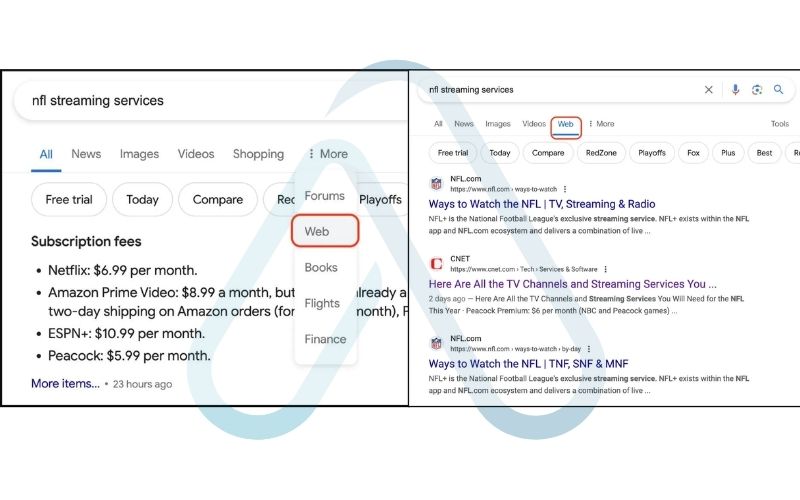
Google has provided an official, albeit temporary, way to get back to basics. The ‘Web’ filter strips out AI Overviews, featured snippets, and other modern elements, giving you a page of simple, text-based links. It’s the purest way to get Google Web tab classic results.
Here’s how to use it for a single search:
- Perform any search on Google as you normally would. You will see the AI Overview at the top.
- Just below the search bar, click on the More tab.
- From the dropdown menu that appears, select Web.
- The page will reload, and the AI Overview will be gone, leaving you with a clean list of search results.
The major downside, as I’ve experienced firsthand, is its lack of permanence. You must click this for every single search you perform. When I asked myself, ‘Can I make the Web filter the default?’, the answer from Google is a clear no. Fortunately, there’s a clever workaround for desktop users.
3.1. How to create a custom search engine to default to the ‘Web’ tab
For a more permanent way to remove Google search AI summary, we can create a custom search engine in your desktop browser. This method works by automatically adding a special parameter, &udm=14, to all your Google searches from the address bar. In simple terms, this parameter tells Google, “Show me ‘Web’ results only.” It’s the most reliable way to set up a custom search engine Google no AI experience.
Here’s how to set it up in major browsers:
For Google Chrome (and other Chromium browsers like Edge, Brave)
- Go to Chrome’s settings by typing
chrome://settings/searchEnginesinto your address bar and pressing Enter. - Under ‘Site search’, click the Add button.
- In the ‘Add search engine’ pop-up, fill in the fields as follows:
- Search engine: Google (Web)
- Shortcut: google.com
- URL with %s in place of query:
https://www.google.com/search?q=%s&udm=14
- Click Add.
- Find your newly created ‘Google (Web)’ engine in the list and click the three-dot menu next to it, then select Make default. Now all searches from your address bar will be AI-free.
For Mozilla Firefox
- Go to Firefox’s settings by typing
about:preferences#searchinto your address bar and pressing Enter. - Scroll down to ‘Search Shortcuts’ and click Add.
- In the URL field, enter:
https://www.google.com/search?q=%s&udm=14 - In the Name field, type ‘Google (Web)’. You can also add an alias like ‘@gw’ for quick access.
- Click the Add button.
- You can then set ‘Google (Web)’ as your ‘Default Search Engine’ from the dropdown menu at the top of the search settings page.
4. How to block AI Overview from searches with browser extensions
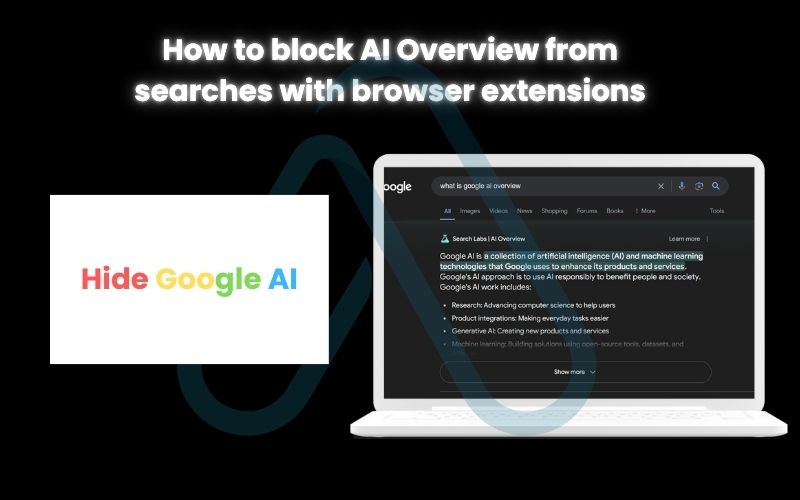
If you prefer a more automated, set-it-and-forget-it solution, various browser plugins hide AI Overviews effectively. These community-driven tools work by identifying the AI Overview element on the page and simply hiding it from view. They are incredibly popular and often work seamlessly without any manual input from you.
Here are a few of the options I’ve tested and found reliable:
uBlock Origin with Custom Filters
- Link: Available for all major browsers.
- Pros: Many users already have it installed. It’s powerful, open-source, and highly trusted.
- Cons: Requires manual configuration.
- Setup: If you’re a bit more technical, you can add a custom filter rule to uBlock Origin’s settings. Go to ‘My filters’ in the dashboard and add this line:
google.com##.Wt5Tfe. This CSS selector specifically targets and hides the AI Overview container.

Dedicated 'Hide Google AI' Extensions
- Link: Search your browser’s extension store for terms like “hide ai overviews” or “no ai google”.
- Pros: Extremely simple one-click installation. No configuration needed.
- Cons: You are trusting a third-party developer with access to your search pages.
4.1. The critical risks: Privacy, security, and stability concerns
Before you install any third-party extension, I have to give a word of caution. While convenient, they are not without risks, and it’s my responsibility at afdevinfo.test/ to ensure you make an informed decision.
A word of caution before you install:
- Privacy: A browser extension can, depending on its permissions, read all the data on the websites you visit. A malicious extension could harvest your search queries or other personal information.
- Security: While browser stores have review processes, malware can sometimes slip through. An extension could inject ads, redirect your searches, or worse.
- Stability: Google frequently updates its website’s code. When this happens, an extension designed to hide the AI Overview might break, stop working, or even interfere with other parts of the page until its developer issues an update.
To stay safe, I always vet an extension by checking its requested permissions (does it *really* need access to all my data?), reading recent reviews (especially 1-star reviews which often highlight problems), and preferring open-source options where the code can be publicly scrutinized.

5. Solutions for mobile users on iOS and Android
Blocking AI Overviews on a mobile device is trickier than on a desktop, especially within the official Google App where you have no control. However, if you search using a mobile browser, you have a few solid options.
5.1. For Android users
The best solution I’ve found for Android is to use a browser that supports extensions. My top recommendation is Firefox for Android. Once you have it installed, you can go into its Add-ons manager and install uBlock Origin directly. From there, you can add the custom filter rule I mentioned in the previous section (google.com##.Wt5Tfe) to get an automatically AI-free search experience on your phone.
5.2. For iOS users
iOS is more restrictive, and browsers like Chrome and Safari do not support the kind of powerful extensions needed for this task. The most practical workaround I use is creating a home screen shortcut that defaults to the ‘Web’ filter. Here’s how:
- Open Safari and navigate to this exact URL:
https://www.google.com/search?udm=14 - Tap the ‘Share’ icon at the bottom of the screen.
- Scroll down and select ‘Add to Home Screen’.
- Name it something like ‘Google Web’ and tap ‘Add’.
Now you have an icon on your home screen that opens directly to a Google search page that will only provide classic ‘Web’ results, completely bypassing the AI.
6. For power users and organizations: At-scale and automated solutions
For IT administrators, researchers, or power users who need to ensure an untainted search environment across multiple machines, manual browser settings aren’t scalable. In these cases, we can turn to more robust, network-level AI-free Google search methods.
One powerful approach is using a network-wide DNS blocker like Pi-hole. While you can’t block the AI Overview with a simple domain block (as it’s served from google.com), you can use its filtering capabilities to enforce certain search parameters, though this is a highly advanced configuration.
A more direct use is deploying browser policies. For instance, an administrator can use Chrome’s policy management to enforce a default search provider for all users that includes the udm=14 parameter in the search URL, effectively disabling AI Overviews across an entire organization.
6.1. Using alternative search front-ends
For the ultimate in control and privacy, I sometimes bypass Google’s interface entirely and use a privacy-focused front-end. These are services that take your query, send it to Google, and then display the results on their own clean, ad-free, and AI-free interface. A great example is SearXNG.
Here’s a quick comparison to help you decide if this advanced path is for you:
| Feature | Modified Google Search (udm=14) | Alternative Front-End (SearXNG) |
|---|---|---|
| Privacy | Standard Google tracking | Excellent (No tracking) |
| AI Blocking | Effective | Guaranteed |
| Customization | None | Extensive |
| Setup Effort | Low | High (if self-hosting) |
While self-hosting a service like SearXNG is the most robust solution, it’s also the most technically demanding. For most users, sticking with the methods in this guide is more than sufficient.
7. FAQs about How to block AI overview from searches
Here are some of the most common questions I get about this topic, answered directly.
Can you disable Google AI Overviews permanently?
No official permanent off-switch exists. Custom search engines are the most reliable workaround right now.
How do I get classic results on Google without AI?
Use the “Web” filter for one-off searches, or set up a custom search engine with “&udm=14” for default classic results on desktop.
Are there browser extensions to block AI Overviews?
Yes. Both dedicated extensions and ad blockers like uBlock Origin (with a custom filter) can hide the AI panel. Review extension risks first.
Is it possible to remove AI answers from Google mobile search?
Harder, but possible. Use a mobile browser with extensions (ex: Firefox Android) or create a Home Screen shortcut that defaults to “Web” on iOS. The Google App can’t be modified.
Why does Google show AI overviews and can I avoid them?
Google believes AI gives faster answers. You can’t officially opt-out, but the methods in this guide can effectively avoid them.
Glossary of key terms
| Abbreviation | Full Term | Meaning |
|---|---|---|
| CSS | Cascading Style Sheets | A computer language used to style and lay out web pages. In this context, it’s used to identify and hide the AI Overview element. |
| DNS | Domain Name System | The system that translates human-readable domain names (like afdevinfo.test/) into machine-readable IP addresses. A DNS blocker can filter internet traffic. |
| Term | Gemini | Google’s family of multimodal artificial intelligence models that power its AI Overviews and other generative AI products. |
| Term | udm=14 | A URL parameter that instructs Google to return results only from its ‘Web’ index, effectively filtering out AI Overviews and other rich results. |
| Term | Pi-hole | A network-level ad and tracker blocking application that can act as a DNS sinkhole, often run on a Raspberry Pi. |
| Term | SearXNG | A free and open-source metasearch engine, which aggregates the results of other search engines while not storing information about its users. |
8. Final thoughts: Taking back control of your search experience
Navigating the web is about having tools that work for you, not the other way around. While Google’s push into AI-driven search doesn’t include an off-switch, my guide shows that you are far from powerless. By choosing the right method, you can reliably create the AI-free search experience you prefer.
Here are the most critical takeaways I want you to remember:
- There is no official ‘off’ button. All effective methods are workarounds you can implement yourself.
- The Custom Search Engine method is the best permanent fix for desktop users. It’s safe, reliable, and requires a one-time setup.
- Mobile solutions require different tactics. Using Firefox with extensions on Android or a custom shortcut on iOS are the go-to choices.
- Always be cautious with browser extensions. Vet them carefully to protect your privacy and security.
The digital landscape is always evolving. I encourage you to bookmark this page and check the effectiveness tracker periodically. Have you found a new method that works? Let me know in the comments, and I’ll test it for our tracker! For more in-depth guides, explore our Online Security & Privacy categories on Afdevinfo.