


Trying to read an article, but a ‘please disable your ad blocker’ message is in your way? You’re in the right place. After more than a decade of dealing with computer hardware and security, I know how frustrating this can be. This guide will show you exactly how to disable an ad blocker on Chrome, but we’ll go a step further. I’m not just going to give you instructions; I’m going to give you the framework to do it safely and smartly, putting you in complete control of your browsing experience.
- First, we’ll decide if you should disable your ad blocker for a particular site.
- Next, I’ll walk you through pausing it for a single, trusted website.
- Then, we’ll cover how to disable or completely remove an extension.
- Finally, we’ll discuss the risks and how to stay safe without an ad blocker active.
1. First, should you disable your ad blocker for this site?
Before you click anything, let’s take a moment. A website’s request to disable your ad blocker isn’t a command; it’s a negotiation. In my experience, blindly following that request can sometimes expose you to security risks or just an awful user experience. Instead of just reacting, let’s make an informed choice. I always run through a quick 60-second mental check before I even consider whitelisting a site.
Think of it as a quick decision flowchart. Ask yourself these questions:
- Do I trust this website? Is it a well-known, reputable source like a major news outlet or a blog I follow, or is it a site I’ve never heard of?
- Is the content essential? Can I find this information elsewhere, or is this the only place to get what I need?
- Is this a one-time visit or a regular stop? For a site I visit daily, I’m more inclined to support them if their ads are reasonable. For a one-off visit, I’m much more cautious.
The main reason to allow ads on Chrome for a specific site is to support creators and publications you value. Many websites rely on ad revenue to exist. However, the downsides are real: potential exposure to malvertising (malicious ads), intrusive pop-ups, and trackers that slow down your browser. By pausing to consider these points, you move from being a passive user to an empowered one.
2. How to temporarily disable an ad blocker for a specific site
In most cases, you don’t need to turn off your ad blocker entirely. The best and safest option is to temporarily pause it or ‘whitelist’ it just for the specific site you’re on. This allows you to access the content while keeping your protection active everywhere else. Here, I’ll show you how to pause your ad blocker, a process that works for most popular extensions like AdBlock and uBlock Origin.
2.1. Using the extension icon in the toolbar
This is the quickest and most common method. It takes just a few clicks right from the page you’re on. Here are the steps:
- Click the puzzle piece icon (Extensions) in the top-right corner of your Chrome toolbar. This will show you a list of all your installed extensions.
- Find your ad blocker in the list. It will be named something like ‘AdBlock’, ‘uBlock Origin’, or ‘AdGuard’.
- Click on the ad blocker’s name to open its menu. You will typically see a large power button or a toggle switch.
- Select the option that says ‘Pause on this site’, ‘Whitelist this site’, or simply click the power button. The extension icon will often change color or display a checkmark to confirm it’s disabled for the current site.
- Refresh the page. The website should now load correctly without the ad blocker message.
2.2. Using the right-click menu on the page
For an even quicker way, many ad blockers add a handy shortcut to the right-click menu. This is a great power-user tip I use all the time. Simply right-click anywhere on the webpage you want to whitelist. In the context menu that appears, hover over your ad blocker’s name (e.g., ‘uBlock Origin’) and you’ll see options to disable it for that specific site. It’s a fantastic shortcut that saves you a click or two.
3. How to completely disable or remove an ad blocker on Chrome
Sometimes, you might want to stop using an ad blocker altogether. Here, it’s important to understand the difference between disabling and removing an extension. To use a simple analogy, disabling is like turning a light off with a wall switch, the fixture is still there if you want to turn it back on. Removing is like unscrewing the lightbulb and taking it out completely. I’ll guide you through both processes via Chrome’s extension management page.
| A quick word of caution: Browsing the modern web without any form of ad blocker can be a jarring experience. You will see more ads, pages may load slower, and your exposure to malicious ads and trackers increases significantly. I only recommend doing this for temporary troubleshooting. |
3.1. Disabling the ad blocker extension
This method turns the ad blocker off for all websites but keeps it installed with all your settings intact for when you want to re-enable it. Here’s how you can manage your browser extensions:
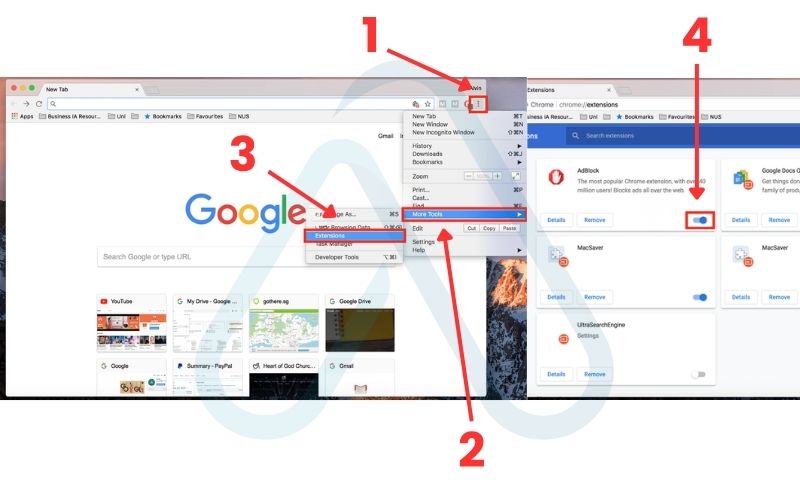
- Click the three-dot menu icon in the top-right corner of Chrome.
- Hover over ‘More Tools’ and then select ‘Extensions’. This will open the main Chrome extensions settings page (you can also get here by typing `chrome://extensions` into your address bar).
- Find your ad blocker in the list of installed extensions.
- Click the blue toggle switch to turn it off. The switch will turn grey, indicating the extension is now disabled everywhere.
3.2. Removing the ad blocker extension permanently
If you’re switching to a different ad blocker or want to stop using one for good, you can remove it permanently. This action will delete the extension and all its associated data and settings. Here is how to remove the ad blocker from Chrome:
- Navigate to the Chrome extensions page using the same steps as above (`three-dot menu > More Tools > Extensions`).
- Find the ad blocker you wish to uninstall.
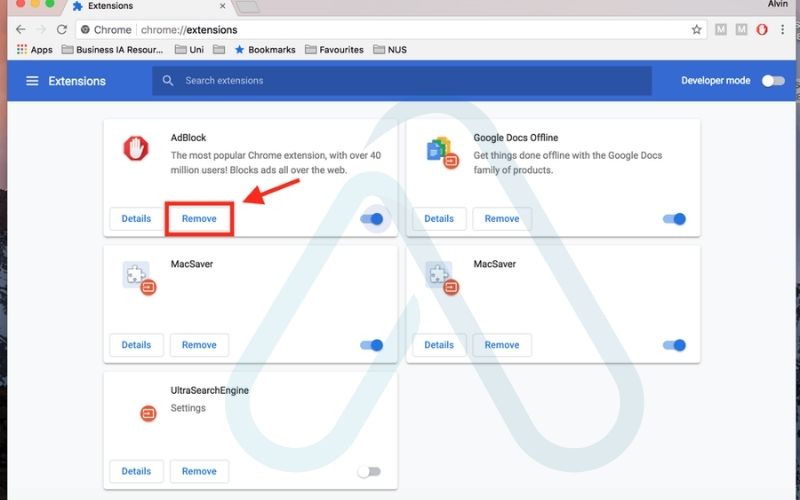
- Click the ‘Remove’ button.
- A confirmation pop-up will appear. Click ‘Remove’ again to confirm. The extension is now permanently uninstalled.
If you’re removing it because it’s not working correctly, consider trying a different ad blocker first. See my quick comparison below for some recommendations!
4. Managing Chrome’s built-in ad blocker
It’s a common misconception that Chrome doesn’t have any ad blocking. It does, but it’s very different from third-party extensions. By default, Chrome includes a built-in filter that blocks ads on sites known to have particularly intrusive or disruptive advertising practices, as defined by the Coalition for Better Ads. This feature is much less aggressive and is not a replacement for a dedicated ad blocker, as it allows most standard ads through.
If you need to, you can adjust these settings. Here are the steps to find it:
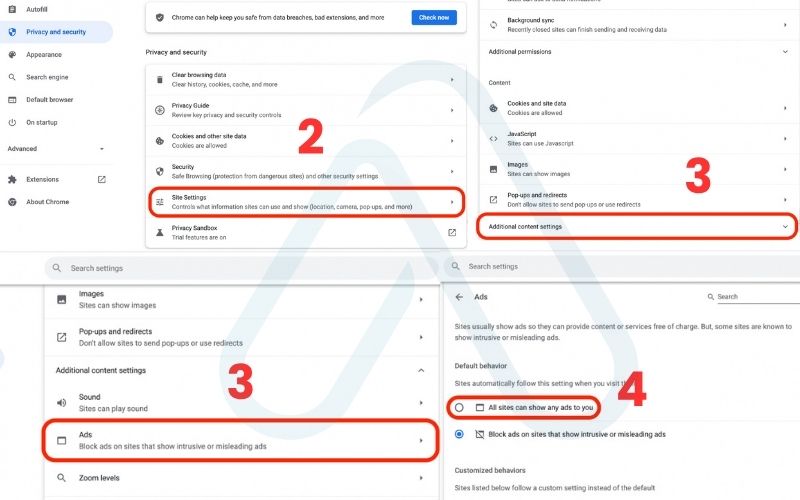
- Go to Chrome’s Settings (via the three-dot menu).
- Navigate to Privacy and security > Site settings.
- Scroll down and click on Additional content settings, then select Intrusive ads.
- Here, you can choose to block intrusive ads (the default) or allow ads on Chrome across all sites.
5. The risks of browsing without an ad blocker (and how to stay safe)
A common question I get is, “Will disabling my ad blocker expose my computer to risks?” The short answer is yes, it can. Disabling your ad blocker is like taking down a small but important defensive wall. It’s crucial to understand the risks so you can mitigate them effectively, especially if you plan to browse without protection for any length of time. Here is a breakdown of the primary risks and how you can stay safe:
| Risk | Mitigation Tip |
|---|---|
| Malvertising | This is when attackers inject malicious code into legitimate ad networks. Clicking on one of these ads can lead to malware or phishing sites. Always use a reputable antivirus program with real-time web protection. |
| Trackers & Cookies | Ads often contain trackers that monitor your browsing habits across the web, building a profile of your interests for targeted advertising. Regularly clear your browser’s cookies and cache. Consider using a privacy-focused browser or extensions that specifically block trackers. |
| Phishing Attempts | Some ads are designed to look like system warnings or legitimate login pages to trick you into giving up your credentials. Be skeptical of any urgent warnings you see in ads. Never enter personal information on a page you reached via an advertisement. |
| Reduced Performance | Ads, especially video ads, consume bandwidth and system resources, which can slow down page loading times and drain your laptop’s battery faster. There isn’t a direct security fix for this, which is why ad blockers are so popular for performance alone. |
6. What to do when you can’t find your ad blocker
It can be frustrating when a site asks you to turn off your ad blocker, but you can’t seem to find it. This happens more often than you’d think. Here are the most common scenarios and their solutions.
| Problem | Solution |
| The ad blocker icon is missing from my Chrome toolbar. | Since a recent Chrome update, extensions are often hidden behind the “puzzle piece” icon. Click the puzzle icon in your toolbar. If your ad blocker appears there, click the pin icon next to its name to keep it permanently visible. |
| I don’t remember the name of my ad blocker, or it’s not in the puzzle menu. | Type chrome://extensions into your address bar and press Enter. This opens a full list of installed extensions. From there, you can find your ad blocker and use the toggle to disable or remove it. |
7. A quick comparison of popular ad blockers
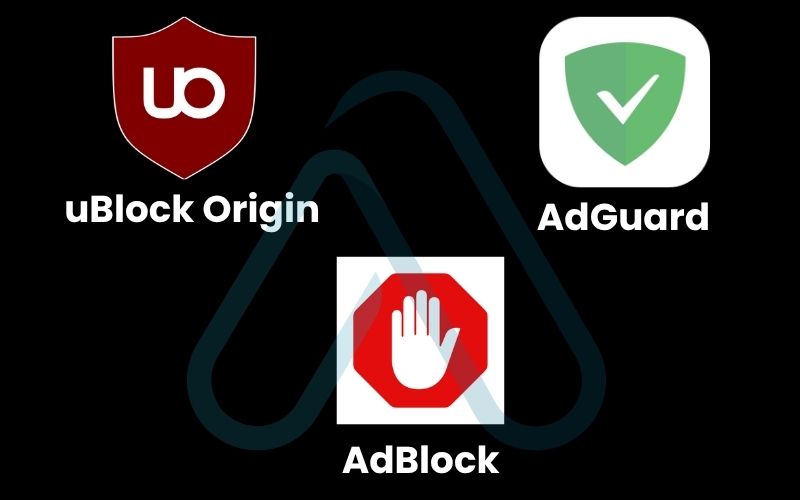
If you’re thinking about removing your current ad blocker, you might be looking for a replacement. The ad blocker landscape is vast, but I’ve found that most users will be very happy with one of these three excellent options. Each has slightly different strengths.
| Ad Blocker | Best For | Resource Use (CPU/RAM) | Key Feature |
|---|---|---|---|
| uBlock Origin | Power users and performance enthusiasts. | Very Low | Extremely lightweight and highly customizable with powerful filtering options. My personal recommendation. |
| AdGuard | Users who want a set-and-forget solution with extra privacy features. | Low-Medium | Goes beyond ads to block trackers and malicious sites, with a clean user interface. |
| AdBlock | Beginners looking for simplicity and ease of use. | Medium | The original and most well-known AdBlock extension, it participates in the ‘Acceptable Ads’ program by default (can be disabled). |
8. FAQs about how to disable an ad blocker on Chrome
I’ve gathered some of the most common follow-up questions I receive and provided direct, concise answers to help you find what you need quickly.
How do I disable the ad blocker on Chrome for Android or iOS?
Chrome mobile has no extensions. Go to Settings > Site settings > Ads and turn off the block if needed.
Does disabling my ad blocker in normal mode affect incognito mode?
No. Extensions are disabled by default in incognito unless you manually allow them in the extension’s Details page.
Why can’t I remove an ad blocker on my work computer?
Because the browser is managed by your organization. Only IT can remove forced extensions.
Will a VPN act as an ad blocker?
Normally no. A VPN hides your IP and encrypts traffic. Ad blocking is a separate feature. Some premium VPNs include it, but it’s not standard.
Glossary of key terms
| Term | Full Term | Meaning |
|---|---|---|
| Malvertising | Malicious Advertising | The use of online advertising to spread malware. Attackers inject malicious code into legitimate ad networks. |
| VPN | Virtual Private Network | A service that encrypts your internet traffic and hides your IP address, enhancing your online privacy and security. |
| Extension | Browser Extension | A small software program that adds new features or functionality to a web browser like Google Chrome. |
| Whitelisting | Allow List / Whitelist | The practice of creating a list of approved items (like websites) that are allowed to bypass a security filter, such as an ad blocker. |
| Tracker | Web Tracker | A script or piece of code embedded in websites to collect data about users’ browsing activities for analytics or advertising purposes. |
9. Final thoughts
We’ve covered a lot of ground, from the simple act of clicking a button to the more important act of thinking before you click. My goal has always been to empower you with not just the ‘how’, but also the ‘when’ and ‘why’. You are now in a much better position to manage your online experience effectively.
Here are the most critical takeaways from this guide:
- Always decide first: Before disabling anything, run through a quick mental check to determine if you trust the site.
- Pause, don’t stop: For trusted sites, the best method is to temporarily pause or whitelist the site, keeping your protection active everywhere else.
- Understand the risks: Browsing without an ad blocker increases your exposure to malvertising and tracking. Ensure you have other protections, like a good antivirus, in place.
- You are in control: Remember that you have the final say on what content is allowed to run in your browser.
You’re now in full control of your browsing experience, balancing access to content with your own digital security.
For more in-depth guides on protecting your digital life and getting the most out of your software, explore our Online Security & Privacy categories on Afdevinfo.