


Need to figure out how to disable antivirus on Windows 11? You’re in the right place, but let’s do it the smart, safe way. As a tech expert with over a decade of experience, I’ve seen countless users need to pause their protection for legitimate reasons, like installing specific software or troubleshooting a system issue. However, disabling your digital guard dog, even for a moment, opens a door to potential threats. That’s why my guide on Afdevinfo focuses on a safety-first approach. I won’t just show you the ‘how’; I’ll help you understand the ‘why’ and the ‘when’.
Here’s a quick look at what we’ll cover to ensure you do this correctly and securely:
- Assessing if you truly need to disable your antivirus.
- Understanding the critical difference between temporary and permanent methods.
- Step-by-step instructions for the safest, temporary disablement.
- Advanced methods for permanent disablement (with strong warnings).
- The crucial final step: re-enabling your protection.
1. Should you even disable your antivirus?
Before we touch a single setting, the most important step is to ask yourself if this is truly necessary. Many guides jump straight into the instructions, but at afdevinfo.test/, my priority is your security. Answering the common question, ‘Is it safe to turn off antivirus on Windows 11?’ is simple: for general use, absolutely not. However, for specific, controlled tasks, it can be done with caution. You need to weigh the benefits against the significant risks.
To help you decide, I’ve created this simple decision matrix. Ask yourself these questions before proceeding:
| Scenario (Why you want to disable it) | Risk Level | Recommended Action |
| Installing a trusted, well-known software that is being incorrectly flagged (a ‘false positive’). | Low | Use the temporary disable method (Section 3). Re-enable immediately after installation. A better option is to add an ‘exclusion’ for the specific file or folder in Windows Security. |
| Troubleshooting a performance issue or software conflict to see if the antivirus is the cause. | Medium | Use the temporary disable method (Section 3). Disconnect from the internet during the test to minimize risk. |
| Running a specialized system tool or a game that requires it. | High | This is risky. Ensure the software is from a 100% reputable source. Disconnect from the internet and use the temporary disable method. |
| Installing a new, primary third-party antivirus suite (like Bitdefender or Norton). | Low | This is the most common and safest reason. Most third-party installers will handle this automatically. If not, you may need to permanently disable Microsoft Defender (Section 4). |
2. Understanding the difference between temporary vs permanent disablement
The next critical choice is whether you need temporary or permanent disablement. In my experience, over 99% of situations call for a temporary solution. Choosing the wrong one can leave your system needlessly exposed. Understanding the implications is key to managing your system responsibly.
Here is a clear breakdown of the two options:
| Feature | Temporary Disable | Permanent Disable |
| Automatic Reactivation | Yes, protection will turn back on automatically after a short period or a system restart. | No, protection is turned off until you manually reverse the changes. |
| Security Risk | Lower. The window of vulnerability is short and managed by the system. | Extreme. Your system remains vulnerable to malware, ransomware, and other threats indefinitely. |
| Best For… | Troubleshooting, installing trusted software, resolving conflicts. Essentially, for any short-term task. | System administrators or users installing a new, primary third-party antivirus solution. |
| Requires… | A few clicks within the Windows Security app. | Advanced changes via the Group Policy Editor or Windows Registry. |
For most users, the goal is to turn off antivirus temporarily on Windows 11, which is the method I strongly recommend and will detail first.
3. How to temporarily disable antivirus on Windows 11 (the recommended method)
This is the safest and most common method for disabling Microsoft Defender’s real-time protection. It’s the way Microsoft intends for users to briefly pause security for specific tasks. This method uses the built-in Windows Security application and is fully reversible, as the system will automatically re-engage protection to keep you safe.
3.1. Step-by-step for disabling real-time protection
Here is the exact process to access the correct toggle in your Windows 11 security settings:
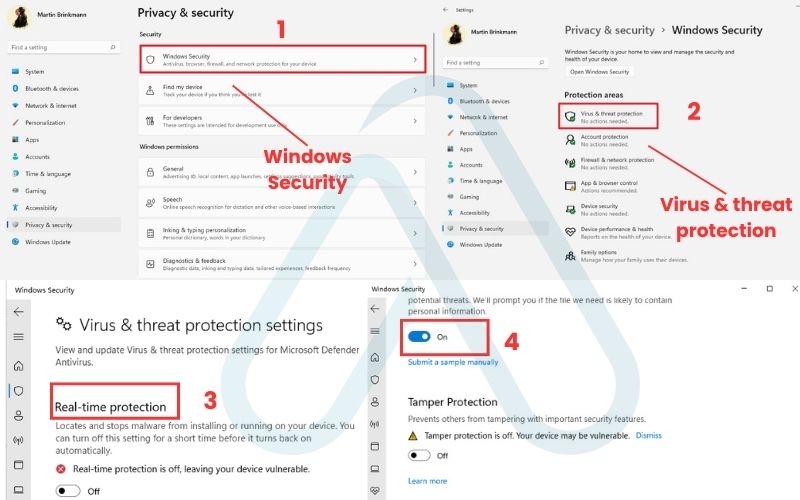
- Press the Start button, type Windows Security, and press Enter to open the app.
- In the left-hand menu, click on Virus & threat protection.
- Under the ‘Virus & threat protection settings’ heading, click on Manage settings.
- You will see a toggle switch for Real-time protection. Click this toggle to turn it from On to Off.
- A User Account Control (UAC) prompt will appear asking for permission. Click Yes to confirm the change.
| Important: Your real-time protection is now temporarily disabled. Windows 11 is designed to automatically re-enable this feature after a short period or upon the next system restart to ensure your device does not remain unprotected. |
Why does Windows Defender turn itself back on?
I get this question a lot. This is not a bug; it’s a critical security feature. Microsoft designed Windows 11 to prevent users from accidentally leaving their primary defense down. By automatically re-enabling protection, Windows ensures that a temporary change doesn’t become a permanent vulnerability.
4. How to permanently disable Microsoft Defender (advanced users only)
| Warning: I cannot stress this enough. Permanently disabling Microsoft Defender leaves your system completely vulnerable to malware, ransomware, and other cyberattacks. Only proceed with these steps if you are an advanced user and are immediately installing a trusted third-party antivirus solution to take its place. Proceed at your own risk. |
There are rare cases where a permanent solution is needed, typically when a third-party antivirus fails to register itself correctly as the primary security provider. If you find yourself in this situation, there are two advanced methods to permanently disable Windows Defender.
4.1. Using the Group Policy Editor (Windows 11 Pro/Enterprise)
The Local Group Policy Editor is a powerful tool available in Windows 11 Pro, Enterprise, and Education editions that allows administrators to control system settings. It is not available on Windows 11 Home. This method prevents Microsoft Defender from running.
Follow these steps carefully to use the group policy editor to disable the antivirus:
- Press Windows Key + R to open the Run dialog.
- Type
gpedit.mscand press Enter. - In the Group Policy Editor, navigate to the following path:
Computer Configuration > Administrative Templates > Windows Components > Microsoft Defender Antivirus - In the right-hand pane, find and double-click the policy named Turn off Microsoft Defender Antivirus.
- Select the Enabled radio button to turn off the antivirus.
- Click Apply and then OK. Restart your computer for the change to take full effect.
4.2. Using the Registry Editor (Windows 11 Home & Pro)
For users on Windows 11 Home, the Group Policy Editor is not available. This is how you disable the antivirus if Group Policy Editor is missing. The alternative is using the Windows Registry Editor. Editing the registry is risky; an incorrect change can cause system instability. I strongly advise you to back up your registry before proceeding.
Here is how to safely use the registry editor for Windows Defender:
- First, open the Registry Editor by pressing the Start button, typing
regedit, and pressing Enter. Approve the UAC prompt. - Before making any changes, back up your registry. Go to File > Export. Choose a safe location, select ‘All’ for the export range, give it a name, and click Save.
- Navigate to the following key in the left-hand pane:
HKEY_LOCAL_MACHINE\SOFTWARE\Policies\Microsoft\Windows Defender - Right-click on the Windows Defender key (folder), select New > DWORD (32-bit) Value.
- Name this new value DisableAntiSpyware and press Enter.
- Double-click on the new DisableAntiSpyware value, change its ‘Value data’ from 0 to 1, and click OK.
- Restart your computer to apply the changes.
5. A crucial final step for how to re-enable Microsoft Defender
Once you’ve completed the task that required disabling your antivirus, your immediate next step should be to re-enable your Windows 11 antivirus protection. Leaving your system exposed is not worth the risk. This is your ‘back to safety’ guide.
Here’s how to reverse the changes and verify your protection is active:
- For Temporary Disable: Simply restarting your computer is the easiest way. Windows will automatically turn Real-time protection back on. You can also go back to the ‘Virus & threat protection settings’ and manually flip the toggle back to On.
- For Permanent Disable (Group Policy): Follow the steps in section 4.1, but in the final step, select Not Configured or Disabled instead of ‘Enabled’. Restart your PC.
- For Permanent Disable (Registry): Follow the steps in section 4.2. Navigate back to the DisableAntiSpyware value, either by changing its ‘Value data’ back to 0 or by right-clicking and deleting the value entirely. Restart your PC.
After re-enabling, here is how you can verify that everything is working correctly:
- Look for a green checkmark on the Windows Security shield icon in your system tray.
- Open the Windows Security app and ensure the ‘Virus & threat protection’ area shows ‘No action needed’.
6. Disabling third-party antivirus software (e.g., Norton, McAfee, Bitdefender)
This guide has focused on Microsoft Defender, but what if you use a different security suite? Answering ‘Can I disable third-party antivirus on Windows 11?’ is simple: yes, and the process is usually straightforward. When you install a third-party antivirus, it typically disables Microsoft Defender automatically to avoid conflicts.
While the exact steps vary by brand, the general process is very similar. Here’s what I usually do:
- Find the antivirus program’s icon in the system tray (the area by your clock in the bottom-right corner).
- Right-click the icon. Look for an option like ‘Disable protection,’ ‘Turn off shields,’ or ‘Silent Mode.’
- Most programs will ask you to specify a duration (e.g., 15 minutes, 1 hour, until next restart). Always choose the shortest duration necessary for your task.
- If the option isn’t in the right-click menu, open the program’s main dashboard and look for the protection settings there.
- For specific instructions, it’s always best to consult the official support pages for your software (e.g., Norton, McAfee, Bitdefender).
7. FAQs about how to disable antivirus on Windows 11
Here are quick answers to some of the most common questions I encounter about managing antivirus settings on Windows 11.
How do I disable Microsoft Defender in Windows 11?
Use the temporary method: Settings > Privacy & security > Windows Security > Virus & threat protection > Manage settings > turn off Real-time protection.
Is it safe to turn off antivirus?
No, not for normal use. Only do it briefly for a specific trusted task, ideally while offline.
Why does Defender turn itself back on?
Because Windows is designed to auto-re-enable protection if it detects you left it off.
How do I disable antivirus if Group Policy Editor is missing?
Windows 11 Home doesn’t include gpedit. You must use the Registry Editor method instead.
Glossary of key terms
| Term | Full Term | Meaning |
| Antivirus | Antivirus Software | A program designed to detect, prevent, and remove malicious software (malware) like viruses, worms, and trojans. |
| Real-time protection | Real-time Protection | A core feature of antivirus software that continuously scans files, programs, and network traffic for threats as they happen. |
| gpedit.msc | Group Policy Editor | A Windows administration tool used to configure and modify system and user settings. Available in Pro, Enterprise, and Education editions. |
| regedit | Windows Registry Editor | A tool for viewing and editing the Windows Registry, a hierarchical database of settings and options for the operating system and installed applications. |
| Third-party Antivirus | Third-party Antivirus Software | An antivirus program developed by a company other than the operating system provider (e.g., Norton, McAfee, Bitdefender are third-party AVs for Windows). |
8. Final thoughts
Navigating how to disable your antivirus on Windows 11 is a task that requires care and attention. As we’ve covered, it’s a powerful tool for troubleshooting and software installation, but it’s not something to be taken lightly. My goal with this guide was to empower you to perform this action safely and effectively, fully aware of the risks and armed with the knowledge to restore your system’s protection as quickly as possible. Always remember that your digital security is paramount.
To ensure you stay safe, always follow these golden rules:
- Always have a good reason: Never disable protection without a specific, legitimate purpose.
- Disconnect from the internet: If possible, go offline to minimize your exposure while unprotected.
- Choose temporary over permanent: Use the temporary method unless absolutely necessary.
- Re-enable protection ASAP: The moment your task is done, turn your antivirus back on.
Managing your own security is a key skill in today’s digital world. By following these steps, you’re taking control of your device in a responsible way. For more in-depth guides, explore our Online Security & Privacy categories on Afdevinfo.