


As a tech expert who has spent over a decade with my hands inside countless machines, I know the frustration of asking, can you change the video card in a laptop when your performance starts to lag. Your games stutter, your video renders crawl, and the big question looms: Can you just swap out the graphics card like you would on a desktop? The short answer is almost always no, but the long answer is far more interesting and crucial for making a smart decision.
| The Direct Answer: For over 99% of modern laptops, the answer is a firm NO. Your Graphics Processing Unit (GPU) is permanently soldered to the motherboard. |
This guide isn’t just about telling you ‘no.’ It’s a risk-focused decision-making tool I’ve designed to help you understand the ‘why.’ I’ll walk you through the technical reasons, explore the rare 1% of laptops that break the rule, detail the most practical alternative (eGPUs), and arm you with a flowchart to determine the best path for your specific situation. At Afdevinfo, our goal is to empower you with precise knowledge, helping you enhance your laptop’s capabilities confidently and safely.
1. Can you change the video card in a laptop? Why most laptop GPUs are not upgradable
The primary reason you can’t upgrade your laptop’s GPU is a fundamental shift in design philosophy over the past decade. To make laptops thinner, lighter, and more power-efficient, manufacturers moved away from modular components toward a highly integrated design where core parts are permanently attached.
Think of it like a modern car engine where the transmission is welded directly to the frame instead of being a separate, swappable part. It’s more compact and efficient, but repairs and upgrades become nearly impossible. For a laptop, the GPU, and often the CPU and RAM, are soldered directly onto the main circuit board, the motherboard.
The big question, ‘Is it possible to replace a soldered GPU in a laptop?’ technically has a ‘yes’ answer, but it requires micro-soldering equipment and expertise far beyond even most professional repair shops, carrying an immense risk of destroying the entire motherboard. For all practical purposes, if your goal is to replace the video card in your laptop, a soldered chip makes it a non-starter.
1.1. The age of the soldered GPU: Efficiency over modularity
This move to soldered components wasn’t done to frustrate users like us; it was a deliberate design trade-off. By soldering the GPU directly to the motherboard, manufacturers can create much tighter, more efficient electrical pathways. This reduces latency, lowers power consumption, and allows for the ultra-thin designs we see today. It’s a classic case of prioritizing portability and efficiency over the modularity and upgradability that define desktop PCs.
Here is a simple comparison of the two design philosophies:
| Feature | Soldered GPU Laptops | Desktop PCs |
| Upgradability | Extremely limited or impossible | Highly modular and user-upgradable |
| Size/Portability | Spacious, allowing for large, powerful cooling solutions | Large, stationary, and heavy |
| Thermal Design | Compact, custom-engineered for specific components | Spacious, allows for large, powerful cooling solutions |
1.2. Thermal and power limitations explained
Even if you could magically swap the soldered GPU chip, you would immediately run into a catastrophic problem: heat and power. A laptop’s cooling system – its heat pipes, fans, and vents – is not a one-size-fits-all solution. It’s meticulously engineered to handle the exact thermal output (TDP) of the original GPU and CPU.
A more powerful GPU generates significantly more heat and draws more power than the system was ever designed to handle. This is one of the most critical laptop upgrade limitations. Even if you could physically swap the chip, the laptop’s cooling system would fail, leading to severe performance throttling at best, or permanent hardware damage from overheating at worst.
2. The exceptions: Rare laptops that allow internal GPU upgrades
While the vast majority of laptops have soldered GPUs, there was a time when a standard for modular laptop graphics did exist. It’s important to understand this history to know why it’s no longer common, and what the future might hold.
The most well-known standard was the Mobile PCI Express Module, or MXM. An MXM laptop graphics card was a small, removable board, much like a stick of RAM, that contained the GPU and its memory. This allowed for a genuine gaming laptop GPU upgrade on certain high-end, bulky gaming laptops from the late 2000s and early 2010s.
However, the MXM standard was inconsistent, with different sizes and thermal requirements, and it eventually fell out of favor as manufacturers prioritized the thinner, integrated designs we see today. While it’s a fascinating piece of tech history, I must stress that MXM is a largely obsolete technology for consumer laptops, and finding compatible parts today is both difficult and expensive.
2.1. The future is modular: New-generation upgradable laptops (2025+)
So, what laptops allow GPU upgrades today? The good news is that a new wave of modularity is emerging, led by innovative companies. Brands like Framework are pioneering truly modular laptops where nearly every component, including the mainboard with the CPU and graphics, can be swapped out.
Similarly, some ultra-high-end models like Alienware’s past Area-51m series experimented with proprietary desktop-class GPU modules. These are the exceptions that prove the rule, offering a glimpse into a more sustainable and upgradable future.
Here is a table of models pioneering this new upgrade path. I keep this as a living document, so it will be updated as new models are released.
| Model Name | GPU Upgrade Module Type | Official Upgrade Guide (Link) | Key Considerations |
| Framework Laptop 16 | Expansion Bay GPU Module | Available on Framework’s website | Proprietary module system. Excellent repairability. |
| Alienware Area-51m R2 (Discontinued) | Dell Graphics Form Factor (DGFF) | Archived on Dell’s support site | Used desktop-class GPUs, but it was a proprietary standard. |
3. The most viable alternative: External GPUs (eGPUs)
For most people with a modern laptop that has a soldered GPU, the most practical and effective way to get a massive graphics performance boost is by using an external GPU, or eGPU. An eGPU setup consists of two parts: an external enclosure that has its own power supply and a standard desktop graphics card that you install inside it.
This enclosure then connects to your laptop via a high-bandwidth port, which is the critical requirement. You absolutely must have a Thunderbolt 3, Thunderbolt 4, or USB4 port on your laptop. These ports provide enough data throughput to let an external GPU for your laptop function effectively. A standard USB-C port will not work.
While this solution sacrifices portability, it can transform a thin-and-light ultrabook into a legitimate gaming or video editing powerhouse when you’re at your desk.
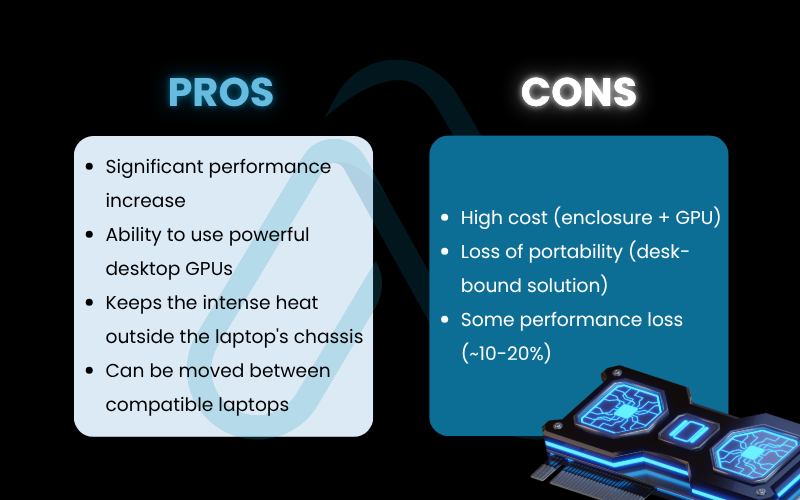
I’ve broken down the main trade-offs for you here:
Pros
Significant performance increase, ability to use powerful desktop GPUs, keeps intense heat outside the laptop’s chassis, and can be moved between compatible laptops.
Cons
High cost (enclosure + GPU), loss of portability (desk-bound solution), some performance loss (~10-20%) compared to the same card in a desktop due to connection bandwidth limitations.
3.1. The reality of eGPUs in 2025 and beyond: Performance, cost, and user experience
So, are external GPUs worth it for laptops? In my experience, the answer depends entirely on your use case and budget. If you have a powerful, modern laptop with a Thunderbolt port but a weak integrated GPU, an eGPU can be a game-changer. You get the best of both worlds: a portable machine for work on the go and a powerful gaming rig at home.
However, the total cost can be substantial. A good enclosure can cost $300-$500, and a mid-range desktop GPU can add another $400-$600. At that price point, you are often approaching the cost of a new, dedicated budget gaming laptop.
An eGPU makes sense if you need a single powerful machine for both mobile work and at-home gaming, but it’s not a magic bullet for every old laptop.
According to tech analyst Eleanor Vance
Setup can also involve some driver troubleshooting, though it has become much more plug-and-play in recent years. It’s a fantastic solution for the right person, but not a universal fix.
4. Should you even attempt a GPU upgrade?
This is the most important part of this guide. Before you spend a dime or open a single screw, it’s time to walk through a diagnostic to see if an upgrade is a smart move or a disastrous one. I’ve designed this section to help you make an informed choice based on your specific hardware, budget, and comfort level with technology.
4.1. Your interactive feasibility flowchart
To determine your best course of action, I recommend following this simple, step-by-step process. This will help you understand your laptop’s graphics card compatibility and guide you toward the most logical gaming laptop GPU upgrade options.
Text-Based Flowchart:
Does your laptop model appear on our ‘Upgradable Laptop Models’ list above (e.g., Framework 16)?
- Yes: Congratulations! You are in the rare 1%. An internal upgrade is possible. Proceed with caution and follow the manufacturer’s official guide. -> Outcome: Internal Upgrade Possible (Rare).
- No: Proceed to the next question.
Does your laptop have a Thunderbolt 3, Thunderbolt 4, or USB4 port? (Look for a lightning bolt icon next to a USB-C port).
- Yes: An eGPU is a strong possibility. Proceed to the next question.
- No: An eGPU is not an option. Your only path to better graphics performance is a new laptop. -> Outcome: Upgrade Not Recommended; Consider a New Laptop.
Is your budget for an eGPU solution (enclosure + graphics card) over $500?
- Yes: An eGPU is a financially viable option. Proceed to the last question.
- No: The cost of an eGPU may not provide good value compared to saving for a new, balanced system. -> Outcome: Upgrade Not Recommended; Consider a New Laptop.
Are you comfortable with some potential driver installation and performance troubleshooting?
- Yes: You have the right mindset and hardware for an eGPU. -> Outcome: eGPU is Your Best Bet.
- No: The potential for technical hurdles may lead to frustration. A new, integrated system might be a better experience for you. -> Outcome: Upgrade Not Recommended; Consider a New Laptop.
5. The ultimate risk assessment: What can go wrong
As a seasoned hardware expert, I have to give you the unvarnished truth about the dangers involved, especially if you’re tempted to try to modify a laptop that wasn’t designed for it. Answering ‘What are the risks of upgrading a laptop video card?’ is critical because the consequences can be severe and costly.
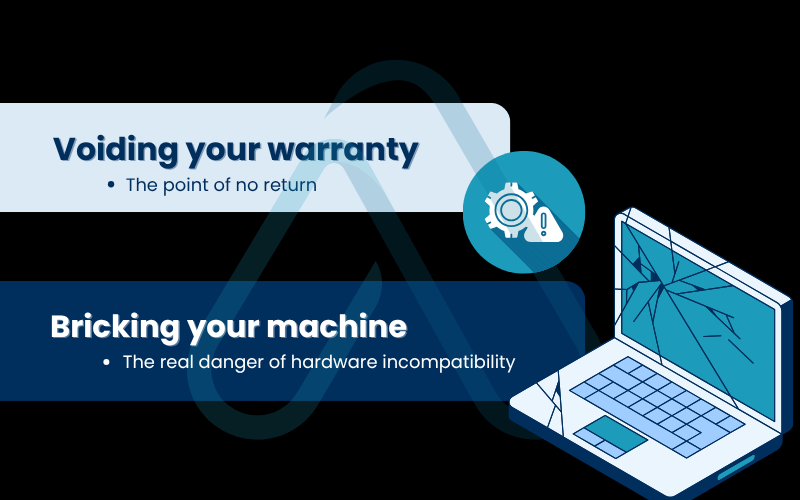
5.1. Voiding your warranty: The point of no return
The moment you open your laptop’s chassis to attempt an unauthorized modification, you have almost certainly voided your manufacturer’s warranty. This means if any other component fails in the future – the screen, the keyboard, the motherboard itself – the manufacturer is no longer obligated to repair it, even if the failure seems unrelated to your actions.
I thought I could get away with it, but when my screen died a month later, the manufacturer denied my claim, citing the unauthorized modification. It was a $1500 mistake.
User usecase
| Warning A voided warranty means you are solely responsible for the full cost of any future repairs, which can often exceed the price of a new laptop. |
5.2. Bricking your machine: The real danger of hardware incompatibility
Beyond the warranty, there is the very real risk of causing irreversible hardware damage, a situation we call ‘bricking’ the device, because it becomes as useful as a brick. A slipped screwdriver can scratch a motherboard trace, a forgotten screw can cause a short circuit, and delicate ribbon cables can be torn with one wrong move.
Furthermore, even if you found a physically compatible MXM card for an old laptop, a mismatch in its vBIOS (the card’s firmware) could conflict with your laptop’s main BIOS, preventing it from ever booting up again.
| Warning Hardware incompatibility or a simple physical mistake can permanently destroy your laptop’s motherboard, resulting in a total loss of your investment. |
Potential points of failure during an unauthorized internal upgrade attempt include:
- Shorting the motherboard with a dropped screw or static discharge.
- Cracking the plastic chassis or screen bezel during disassembly.
- Tearing fragile ribbon cables connecting the keyboard, trackpad, or screen.
- Installing an incompatible part that causes a vBIOS or power delivery conflict, bricking the device.
6. FAQs about can you change the video card in a laptop
Here are my answers to some of the most common follow-up questions I get on this topic.
Can I upgrade the GPU if it’s an integrated Intel or AMD chip?
No. Integrated GPUs are built into the CPU and cannot be replaced. You can only improve graphics with an external GPU (eGPU) via a Thunderbolt port.
Will upgrading my GPU affect my laptop’s battery life and thermals?
Yes. A stronger GPU uses more power and produces more heat, which reduces battery life and increases system temperature.
How can I find out if my GPU is soldered without opening my laptop?
Check teardown videos on YouTube or iFixit, or review your laptop’s technical specs or maintenance manual on the manufacturer’s website.
Is it cheaper to upgrade with an eGPU or buy a new gaming laptop?
Usually, a new gaming laptop is better value. An eGPU setup can cost $700–$1000, roughly the same as a new entry-level gaming laptop with balanced specs and warranty.
Glossary of key terms
| Abbreviation | Full Term | Meaning |
| GPU | Graphics Processing Unit | A specialized electronic circuit designed to rapidly manipulate and alter memory to accelerate the creation of images in a frame buffer intended for output to a display device. |
| SoC | System on a Chip | An integrated circuit that integrates all or most components of a computer or other electronic system. In laptops, this often means the CPU and GPU are part of the same package. |
| MXM | Mobile PCI Express Module | A now largely obsolete interconnect standard for GPUs in laptops, which allowed for some modularity and upgradability in older, bulkier models. |
| eGPU | External Graphics Processing Unit | A setup where a desktop graphics card is placed in an external enclosure and connected to a laptop via a high-speed connection like Thunderbolt to boost its graphics performance. |
| Thunderbolt | Thunderbolt | A high-speed hardware interface developed by Intel that allows the connection of external peripherals to a computer. Versions 3 and 4 are fast enough to support eGPUs. |
| vBIOS | Video Basic Input/Output System | The firmware on a graphics card that controls its basic operations. An incompatibility between a new GPU’s vBIOS and a laptop’s main BIOS can prevent the system from booting. |
7. Final thoughts
After navigating the complexities of laptop graphics, I hope you feel empowered rather than discouraged. The landscape has changed dramatically from the days of modular desktops, but that doesn’t mean you’re out of options.
Understanding the ‘why’ behind today’s integrated designs is the key to making a smart, cost-effective decision for your hardware. For the vast majority of users, the dream of an internal GPU swap is not a reality, but powerful alternatives and an exciting new generation of modular laptops are changing the game.
To wrap it all up, here are my most critical takeaways on changing the video card in a laptop:
- Internal upgrades are extremely rare: Over 99% of laptops have GPUs permanently soldered to the motherboard, making an internal upgrade impractical and risky.
- eGPUs are a powerful but costly alternative: If you have a modern laptop with a Thunderbolt 3/4 or USB4 port, an external GPU is your most viable path to a massive performance boost.
- Always assess risks before proceeding: Attempting an unauthorized internal modification will void your warranty and carry a high risk of permanently damaging your machine.
- The future is modular: A new generation of laptops, led by brands like Framework, is bringing true upgradability back, offering hope for more sustainable and long-lasting devices.
Ultimately, knowing your laptop’s limitations is the first step toward making a smart upgrade. Whether you choose an eGPU, save for a new machine, or are one of the lucky few with an upgradable model, you’re now equipped to make the right choice for your needs and budget. For more in-depth guides on optimizing your technology, explore our Productivity & Automation categories on Afdevinfo.