



If you’ve ever wondered how to hide files in computer systems for privacy or organization, you’re not alone. Whether you share your PC or simply want a cleaner workspace, knowing how to hide files in computer is an essential skill. In this guide, you’ll learn both easy and expert methods to conceal files and folders on Windows, from simple File Explorer tricks to advanced Command Prompt commands and understand the difference between hiding, encrypting, and password-protecting your data.
Before we dive into the details, here’s what to expect from this guide:
- Why you might want to hide files or folders.
- Step-by-step methods for hiding and revealing files in Windows.
- How to use Command Prompt for deeper concealment.
- The real difference between hiding, encrypting, and password-protecting files.
- Troubleshooting and expert privacy tips for layered protection.
1. Why hide files and folders on your computer?
Over my decade of working with computer hardware and software, one of the most common questions I get is about privacy. Whether you share your PC with family or just want to tidy up your desktop, understanding how to hide files in computer systems is a fundamental skill. Hiding files is a great first-line-of-defense for casual privacy, preventing accidental discovery or deletion. In this guide, I’ll not only teach you the ‘how’ but also explain the ‘when’ and, more importantly, the ‘why not’ by diving into some essential Windows file privacy tips. We will cover both the simple, built-in methods and more advanced techniques for those who need an extra layer of obscurity.
2. Hiding files with File Explorer
For most users, the simplest way to hide files is directly through the Windows File Explorer. This graphical user interface (GUI) method involves changing a file’s ‘attribute,’ which is a piece of metadata that tells the operating system (OS) how to treat it. By flagging a file as ‘hidden,’ you’re instructing Windows not to display it by default. I find this perfect for decluttering or keeping casual documents out of immediate sight.
2.1. How to make files and folders invisible in Windows 11
Here is the straightforward process to hide your first file or folder:
- Locate the Item: Navigate to the file or folder you wish to hide.
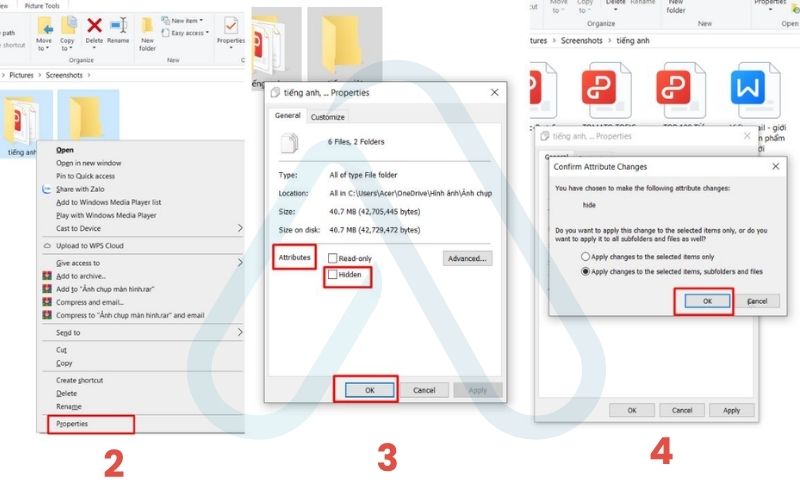
- Open Properties: Right-click on the file or folder and select ‘Properties’ from the context menu. [Screenshot showing the right-click context menu with ‘Properties’ highlighted.]
- Set the Hidden Attribute: In the ‘General’ tab of the Properties window, look for the ‘Attributes’ section at the bottom. Check the box next to ‘Hidden’.
- Apply Changes: Click ‘Apply’ and then ‘OK’. If you are hiding a folder, Windows will ask if you want to apply the changes to ‘this folder only’ or ‘this folder, subfolders and files’. For complete privacy, I always recommend choosing the second option.
2.2. How to find and view your hidden files
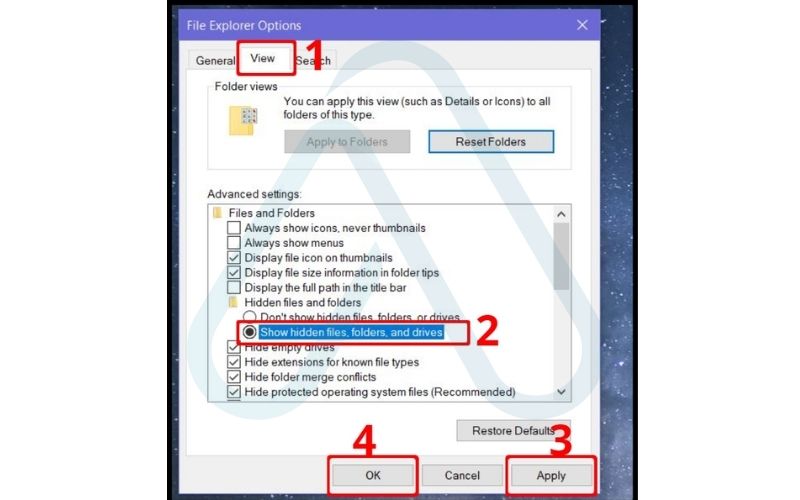
So, you’ve hidden your files, but now you need to access them again. The question of ‘How can I find hidden files and folders?’ is a simple one to answer. To show hidden files, you just need to change a setting in File Explorer.
In any File Explorer window, click on ‘View’ from the top menu bar, then hover over ‘Show’, and click on ‘Hidden items’ to check it. Once enabled, your hidden files and folders will appear in their original location, but with a slightly transparent or faded icon to distinguish them. To permanently unhide an item, simply right-click it, go back into ‘Properties’, and uncheck the ‘Hidden’ box.
| Pro Tip: The quickest way to toggle this setting is via the menu path: View > Show > Hidden items. |
3. Hiding files with the Command Prompt
If you’re comfortable with a more technical approach or want to make files a bit harder to find, the Command Prompt (CMD) is your best friend. This method is more powerful because it allows you to set additional attributes that prevent the file from appearing even when ‘Show hidden items’ is enabled in File Explorer. This is my go-to when I want to hide files using command prompt for a little extra obscurity.
The magic happens with the `attrib` command, which modifies file attributes. Here are the key parameters we’ll use:
| Parameter | Meaning |
|---|---|
| +h | Sets the Hidden file attribute. |
| +s | Sets the System file attribute. |
| +r | Sets the Read-only file attribute. |
| -h / -s / -r | Clears the respective attribute. |
3.1. Using the ‘attrib’ command to hide your data
First, you’ll need to open the Command Prompt. Click the Start button, type `cmd`, and press Enter. Now, you’ll use the `attrib` command with the `+h`, `+s`, and `+r` flags. Adding the ‘system’ (`+s`) attribute is the key here; it tells Windows this is a critical protected file, so it won’t show it by default even if ‘Show hidden items’ is checked.
Here is the command syntax you’ll need:
attrib +h +s +r "C:\Users\YourUser\Desktop\SecretFolder"| Warning Be extremely careful when using the Command Prompt. Always double-check that your file or folder path is correct before pressing Enter. Incorrect paths could lead to unintended changes to system files. |
3.2. Revealing files hidden with the Command Prompt
If you used the `attrib` command to hide a folder, you must use it again to unhide it. Simply changing the view in File Explorer won’t work because of that powerful `+s` (system) attribute. To make the file or folder visible again, you’ll use the same command but replace the plus signs (+) with minus signs (-).
Open CMD and type the following, again replacing the path with your own:
attrib -h -s -r "C:\Users\YourUser\Desktop\SecretFolder"After running this command, your folder will reappear and behave like a normal folder once more.
4. What hiding files can and can’t protect you from
It’s crucial to understand the limitations of this method. Important: Hiding a file is like putting something under a rug, not in a safe. It is a form of obscurity, not security. When I’m asked, ‘Is hiding files on Windows secure?’ my answer is always a firm no. A determined or even moderately tech-savvy user can find these files easily. To truly secure personal files, you need stronger measures.
Here’s a quick breakdown of what hiding can and cannot do for you:
- CAN Protect You From: Accidental deletion by yourself or another user, casual snooping from someone who borrows your computer for a moment, and visual clutter on your desktop or in folders.
- CANNOT Protect You From: Anyone who knows how to enable the ‘Show hidden files’ option, specialized disk analysis and file recovery tools, Windows Search if it’s configured to find hidden files, and malicious software or hackers.
5. Hiding vs. encrypting vs. password-protecting files: A clear comparison
To truly protect your data, it’s essential to know the difference between the tools at your disposal. Hiding is about making things invisible, while encryption is about making them unreadable. Password protection is about controlling access. I’ve created this table to help you decide which method is right for your needs.
| Feature | Hiding | Password-Protecting | Encrypting |
| Best For | Casual privacy, decluttering, preventing accidental edits. | Controlling access to specific applications (e.g., a ZIP archive). | Securing highly sensitive personal or financial data. |
| Security Level | Very Low | Low to Medium | High |
| Ease of Use | Very Easy | Easy to Medium | Medium |
| Built-in to Windows? | Yes (File Attributes) | Partially (e.g., for compressed folders), but not for standard folders. | Yes (e.g., BitLocker for full drives, EFS for files/folders). |
As you can see, for genuine security, encryption is the only reliable option. Windows includes a powerful tool called BitLocker that can encrypt your entire hard drive, which I highly recommend for laptops containing sensitive information.
6. What to do when you can’t find your hidden files
It’s a moment of panic I’ve seen many times: you’ve hidden a file, and now you can’t seem to find it. Don’t worry. Your files are almost certainly still there. Let’s walk through a logical process to locate them.
Your hidden file recovery checklist
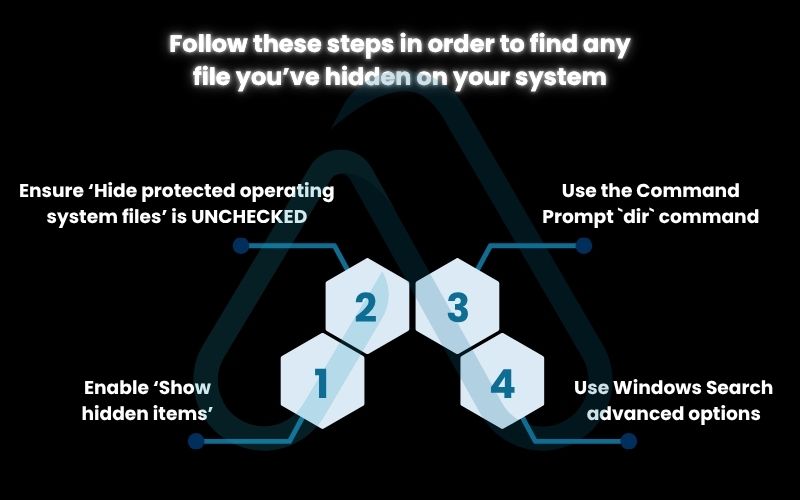
Follow these steps in order to find any file you’ve hidden on your system:
- Enable ‘Show hidden items’. This is the most common reason files go missing. In File Explorer, go to `View > Show` and ensure ‘Hidden items’ is checked. This will reveal anything hidden with the standard method.
- Ensure ‘Hide protected operating system files’ is UNCHECKED. This is for files hidden with the `+s` attribute via Command Prompt. Go to File Explorer, click the three-dots menu (…) > Options. In the ‘View’ tab, scroll down and uncheck ‘Hide protected operating system files (Recommended)’. Warning: These files are hidden for a reason. After you find your file, I strongly advise you to go back and re-check this box to avoid accidentally deleting critical system files.
- Use the Command Prompt `dir` command. If the GUI fails, the command line won’t. Open CMD, navigate to the directory where you believe the file is (`cd C:\Path\To\Folder`), and type `dir /a`. The `/a` flag tells it to list ALL files, regardless of their attributes.
- Use Windows Search advanced options. Windows Search can be a powerful tool. In the search bar, you can use advanced syntax or configure search options in the Control Panel to include hidden and system files in its results.
7. Expert tips for layering your privacy in Windows
Hiding files shouldn’t be your only privacy tactic. In my experience, the best approach is a layered one. Think of it as building multiple fences around your data. These Windows file privacy tips can help you create a much more robust strategy to protect folders from view and secure your information.
Here are a few expert tips I always share:
- Create a Standard User Account for Guests: If you share your computer, create a separate ‘Standard’ user account for them. This prevents them from accessing your personal user folder or making system-wide changes.
- Use BitLocker for Whole-Drive Encryption: For the ultimate protection, especially on laptops, enable BitLocker. It encrypts your entire drive, so even if the drive is physically removed from the computer, the data is unreadable without your password or recovery key.
- Combine Hiding with Smart Naming: Hide a folder and give it an innocuous name like ‘System Temp’ or ‘Cache’. A casual snooper is less likely to investigate a folder that looks like a boring system directory.
- Leverage Compressed Folders with Passwords: While not true encryption, you can put files into a compressed .zip folder and add a password. This provides a decent barrier to entry for non-sensitive files.
8. FAQs about how to hide files in computer
Here are some quick answers to the most common questions I encounter on this topic.
Do hidden files still show up in Windows search?
No, not by default. Hidden and system files are excluded unless you change your search settings to include them, so hiding files is not a secure privacy method.
Will a Windows update make my hidden files visible again?
Not usually. Some major updates may reset folder view settings, but your files will remain hidden. You’ll just need to re-enable “Show hidden items.”
If I move a hidden file to a USB drive, will it stay hidden?
Yes, on Windows-formatted drives like NTFS or FAT32. But if you use the USB on another system, such as macOS or Linux, the file might be visible.
Is there a way to hide files on a Mac?
Yes. In macOS, you can use the Terminal command chflags hidden. It works like Windows’ hide feature but remember that hiding only obscures files, it doesn’t secure them.
Glossary of key terms
| Abbreviation | Full Term | Meaning |
| CMD | Command Prompt | A command-line interpreter application available in most Windows operating systems. |
| GUI | Graphical User Interface | A visual way of interacting with a computer using items such as windows, icons, and menus. |
| OS | Operating System | The system software that manages computer hardware, software resources, and provides common services for computer programs. |
| NTFS | New Technology File System | The primary file system used by Microsoft Windows for storing, organizing, and finding files on a hard disk. |
| BitLocker | BitLocker Drive Encryption | A full-volume encryption feature included with Microsoft Windows versions that protects data by providing encryption for entire volumes. |
| attrib | Attribute command | A Command Prompt command used to display, set, or remove the attributes (like read-only, hidden, system) of files or folders. |
9. Final thoughts
Throughout my years as a technology expert, I’ve learned that the most important thing is choosing the right tool for the job. Hiding files is an incredibly useful skill for organization and casual privacy, but it’s vital to recognize its limits. It provides a simple layer of obscurity that is perfect for keeping your desktop tidy or preventing a family member from accidentally stumbling upon birthday gift lists. However, for anything truly sensitive—financial records, private documents, or client data—it offers no real protection.
To wrap up, here are the most critical takeaways from this guide:
- Hiding files is for obscurity and organization, not for security.
- The easiest method is using File Explorer’s ‘Properties’ menu, while the Command Prompt `attrib` command offers a more robust way to hide files from casual view.
- True data protection comes from encryption, using tools like the built-in Windows BitLocker.
- Always have a troubleshooting checklist ready in case you can’t find your files, starting with the ‘Show hidden items’ option.
By understanding these different methods and their appropriate uses, you can take confident, effective control of your digital privacy. For more in-depth guides on protecting your digital life and boosting your productivity, I encourage you to explore our Productivity & Automation categories on Afdevinfo.