



That moment of panic when your Android phone freezes is universal. One second you’re scrolling, the next your screen is completely unresponsive. As a tech expert with over a decade of experience, I can tell you that the solution is usually simple. This is my complete guide on how to reboot Android phone, going beyond basic instructions to help you choose the right method for your exact situation and what to do if things don’t go as planned.
In this guide, I’ll walk you through everything you need to know, from the simplest restart to more advanced troubleshooting. Here’s what you’ll learn:
- How to quickly choose the correct reboot method for your specific problem.
- Step-by-step instructions for any phone, including brand-specific tips.
- What to do if a reboot doesn’t solve the issue.
1. Which reboot method do you need? A quick decision guide
Before you start pressing buttons, it’s crucial to identify your phone’s symptom. Choosing the right method saves time and prevents unnecessary steps. I’ve created this simple decision guide to help you with troubleshooting an Android that’s not responding.
Use this table to find your situation and the recommended solution:
| Your Phone’s Symptom | Recommended Method | Go to Section |
|---|---|---|
| Phone is working but feels slow or buggy. | Standard Reboot | Section 2 |
| An app is frozen, but you can still access menus. | Standard Reboot | Section 2 |
| The screen is on but completely frozen and won’t respond to touch. | Force Restart | Section 3 |
| The screen is black and the phone won’t turn on. | Force Restart | Section 3 |
| You have a broken power button. | Reboot without Power Button | Section 2.2 |
2. The standard reboot: Your first line of defense
A standard reboot, also known as a soft restart, is your go-to solution for minor issues like general sluggishness or a misbehaving app. Think of it as letting your phone take a quick nap to clear its head. It closes all running applications and processes, giving the operating system a fresh start without affecting your personal files, photos, or settings.
2.1. How to perform a standard reboot
This is the most common and safest way to restart your device. I always recommend trying this first. The steps are nearly universal across all Android devices.
Here is how you do it:
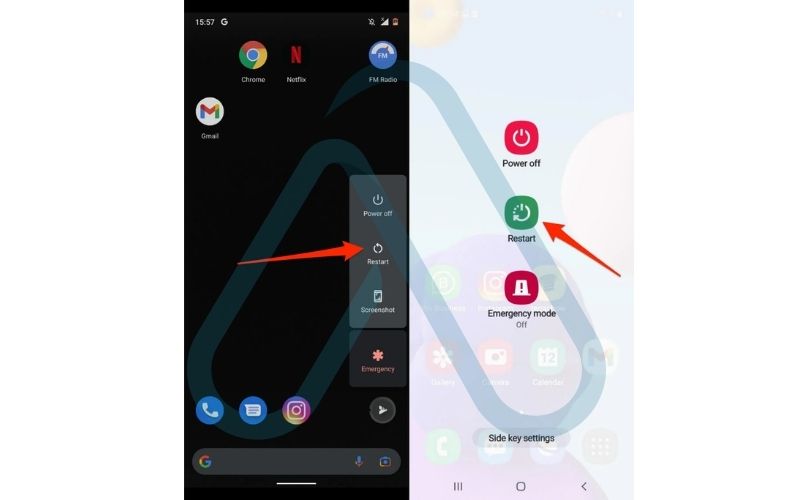
- Press and hold the Power button on the side of your phone.
- After a couple of seconds, a menu will appear on your screen.
- Tap the ‘Restart’ or ‘Reboot’ option.
- Wait for your phone to power off and then turn back on automatically. This process usually takes about a minute.
| Note The on-screen power menu might look slightly different depending on your phone’s manufacturer (e.g., Samsung, Google, Xiaomi), but the ‘Restart’ option will always be present. |
2.2. How to restart your phone without the power button
A broken power button can feel like a major problem, but thankfully, Android has built-in accessibility features that provide an excellent Android reboot shortcut.
Here are your best options:
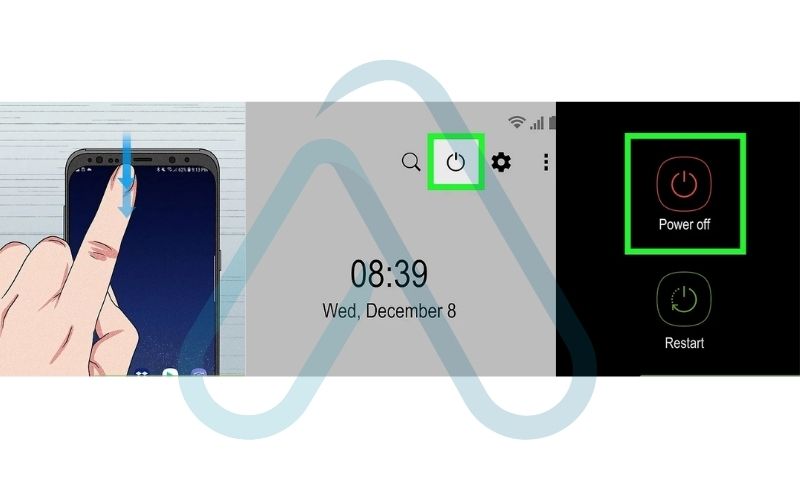
- Use the Accessibility Menu: This is my preferred method. You first need to enable it. Go to Settings > Accessibility > Accessibility Menu and toggle it on. A small icon will appear on your screen (usually a person’s silhouette or three dots). Tap this icon, and you’ll find a ‘Power’ option, which will bring up the restart menu.
- Use the Quick Settings Panel: On some versions of Android, particularly Samsung’s One UI, you can add a power menu icon to your Quick Settings panel (the menu you see when you swipe down from the top of the screen). This makes rebooting just a swipe and a tap away.
- Third-Party Apps: While apps that can reboot your phone exist on the Google Play Store, I advise caution. They often require root access, which can void your warranty and expose your device to security risks. I recommend sticking to the built-in Android methods above.
3. The force restart: For a frozen or unresponsive phone
When your phone’s screen is completely frozen or black, a standard reboot isn’t possible because the software is unresponsive. This is where a force restart (or hard reboot) comes in. It’s a hardware-level override that cuts power to the components, forcing the phone to shut down and restart. I want to be very clear about one thing:
A force restart will NOT erase your data. It is the electronic equivalent of pulling the plug on a computer and plugging it back in. It is completely different from a factory reset.
This is the definitive answer to the question, ‘How do I force restart my Android if it’s frozen?’.
3.1. The universal method for how to reboot most Android phones
For the vast majority of Android devices, the method to force a restart is the same. I’ve used this combination on hundreds of different models over the years.
Follow these steps precisely:
- Press and hold both the Power button and the Volume Down button simultaneously.
- Keep holding both buttons for about 10-20 seconds.
- Ignore any on-screen menus that might pop up. Continue holding the buttons until the screen turns black.
- Release the buttons once you see the manufacturer’s logo (e.g., Samsung, Google, etc.) appear on the screen, indicating the phone is rebooting.
3.2. Specific instructions for popular brands
While the universal method works for most, some brands have slight variations. My experience has shown that knowing these small differences can save a lot of frustration.
Here are the specific instructions for top manufacturers:
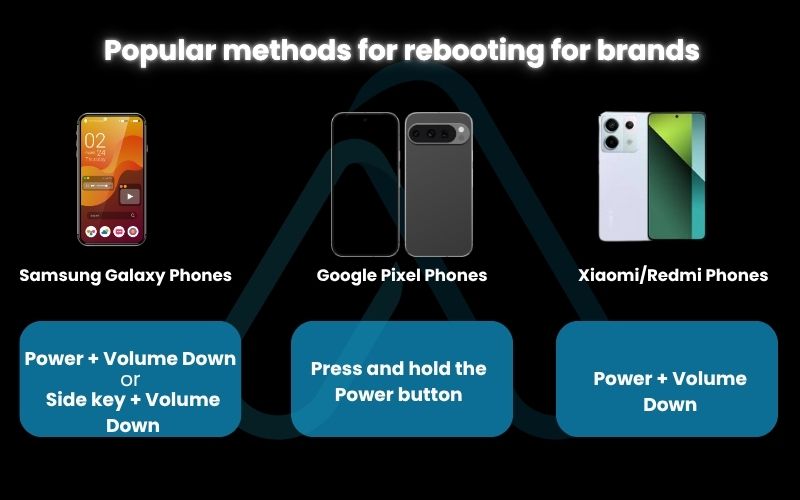
- Samsung Galaxy Phones: For most models, the standard Power + Volume Down method works. However, on newer devices with a Bixby button or a multi-function ‘Side key’, you might need to press and hold the Side key + Volume Down button.
- Google Pixel Phones: Google sticks to the basics. Simply press and hold the Power button for about 30 seconds. The phone will restart on its own.
- Xiaomi/Redmi Phones: These phones also typically use the Power + Volume Down combination. Hold them until you see the Mi or Redmi logo.
4. Understanding the crucial difference
In my field, I see people use the terms ‘reboot’ and ‘reset’ interchangeably, but they mean vastly different things with drastically different outcomes. Understanding the distinction between a soft reset vs hard reset on Android is critical for your data’s safety.
Here’s a simple breakdown I use to explain it:
| Term | What it Does | When to Use It | Data Loss Risk? |
|---|---|---|---|
| Reboot (or Restart) | Powers the phone off and on again, clearing temporary files. | For minor glitches, slowness, or frozen apps. | No |
| Force Restart (or Hard Reboot) | A hardware-level reboot for a completely unresponsive phone. | When the screen is frozen or black. | No |
| Factory Reset (or Hard Reset) | Erases all user data and restores the phone to its original factory settings. | As a last resort for persistent issues or before selling the device. | Yes, 100% |
Here’s an analogy I find helpful: a reboot is like turning a light off and on again. A factory reset is like unscrewing the old bulb and installing a brand new one, everything from before is gone.
5. When not to reboot and potential risks
While rebooting is generally very safe, there are a few specific scenarios where I strongly advise against it. Before you force a restart, take 10 seconds to check for these red flags to avoid turning a small problem into a big one. These are my top tips for ensuring data safety.
Here are the potential risks of a force reboot and when to avoid it:
- During a System Update: Never, ever interrupt a system update (e.g., an Android version upgrade). Doing so can corrupt the operating system, potentially ‘bricking’ your phone and making it unusable without professional repair.
- If the Phone is Overheating: If your phone is hot to the touch, forcing a restart can put additional stress on the components. The best course of action is to turn it off completely (if possible) and let it cool down in a safe place.
- Low Risk of Data Corruption: While extremely rare, there is a minuscule chance that forcing a restart while the phone is writing data to its storage could corrupt a file. This is not common, but it’s a risk to be aware of.

6. What to do if the reboot doesn’t work
Sometimes, a reboot or force restart doesn’t solve the problem. If your phone is still stuck or won’t turn on, don’t panic. As part of my complete troubleshooting for an Android not responding, here are the logical next steps I always follow.
6.1. Step 1: Check your battery and charger
It sounds obvious, but a completely drained battery can perfectly mimic a frozen or dead phone. Before you assume the worst, plug your phone into a wall charger that you know is working. Let it charge for at least 30 minutes without touching it, then try the force restart method again.
6.2. Step 2: Boot into safe mode
If the phone turns on but the problems persist, a rogue third-party app could be the culprit. Safe Mode is a diagnostic tool that starts Android with only the essential, pre-installed system apps, disabling everything you’ve downloaded.
Safe Mode allows you to determine if a problem is being caused by an app you installed. If your phone works perfectly in Safe Mode, it’s a strong sign you need to uninstall recently downloaded apps until the issue is resolved.
To enter Safe Mode, the most common method is to press and hold the Power button until the power menu appears, then tap and hold the ‘Power off’ option on the screen until a ‘Reboot to safe mode’ prompt appears. Tap ‘OK’. Note that this process can vary, so you may need to search for instructions specific to your model.
7. FAQs about how to reboot Android phone
I’ve gathered a few more common questions that pop up when rebooting your Android phone. Here are some quick and direct answers.
What is the difference between reboot and reset on Android?
A reboot just restarts the phone. A reset wipes all data and returns it to factory state.
How do I force restart my Android if it’s frozen?
Hold Power + Volume Down for 10–20 seconds until the logo appears.
Is rebooting safe for my Android phone?
Yes. Reboots are safe and don’t delete data. Only a factory reset erases data.
Can I reboot my Android without the power button?
Yes. Enable the Accessibility Menu to get an on-screen power menu and restart from there.
What should I do if my phone won’t turn back on after rebooting?
Charge it for 30 minutes, try a different charger, then try booting into Safe Mode.
Glossary of key terms
| Abbreviation | Full Term | Meaning |
|---|---|---|
| OS | Operating System | The core software that manages all the hardware and software on a device, like Android. |
| UI | User Interface | The visual elements of a device that a person interacts with, such as icons, menus, and buttons. |
| Reboot / Restart | Soft Reboot / Restart | The process of turning a device off and on again to clear its temporary memory without affecting user data. |
| Force Restart | Hard Reboot | A hardware-level method of forcing a device to shut down and restart when the software is unresponsive. It does not erase data. |
| Factory Reset | Hard Reset | An action that erases all user data, settings, and apps, restoring the device to its original out-of-the-box state. |
| Safe Mode | Safe Mode | A diagnostic mode for an operating system that loads only essential system files and drivers, disabling third-party applications. |
8. Final thoughts
Dealing with a frozen or buggy phone is one of the most common tech frustrations, but as you’ve seen, the solution is usually within your grasp. By understanding the difference between a standard reboot and a force restart, you can confidently handle most issues that come your way. You’re now equipped to diagnose the problem, apply the correct fix, and know what steps to take if your first attempt doesn’t work.
Here are the most critical takeaways from my guide:
- A standard reboot is your first step for minor sluggishness and app glitches.
- A force restart (Power + Volume Down) is the safe, data-preserving solution for a completely frozen phone.
- A reboot is not a reset. A reset erases your data, while a reboot does not.
- If a reboot fails, always check your charger and battery before moving to more advanced steps like Safe Mode.
Mastering these simple techniques puts you in control of your device. For more in-depth guides to help you navigate your digital world, explore our Productivity & Automation categories on Afdevinfo.